L2M Auto Key v3 – AI-Powered Installation Guide
v3 integrates AI screen recognition for greater accuracy, GPU acceleration, and AI boss-name reading — a complete upgrade over the Basic version.
How is v3 different from Basic?
Basic version
- Recognizes game elements using fixed image templates
- Lightweight, simple, few dependencies
- Error-prone when resolution or UI changes
- No AI boss-name reading
v3 – AI
- AI recognizes objects by category
- More accurate and stable across resolutions
- GPU acceleration for faster processing
- AI boss-name reading for the exclusion list
System Requirements
- OS: Windows 10 / 11 (64-bit).
- RAM: 4 GB or more recommended.
- GPU (optional): The tool runs without a GPU. Having one significantly speeds up AI processing. Supported GPUs:
NVIDIA (most common)
- GTX 950 and above (GTX 900 series, except 750/750 Ti)
- GTX 1050+ recommended — stable, widely available, good value
- RTX 2000+ is even better
AMD
- RX 470 / RX 480 and above (Polaris 2016)
- RX 570 / 580 most common in the budget used market
Intel
- Arc A380 and above
- Integrated graphics: requires 12th gen Alder Lake (Core i5-12xxx+)
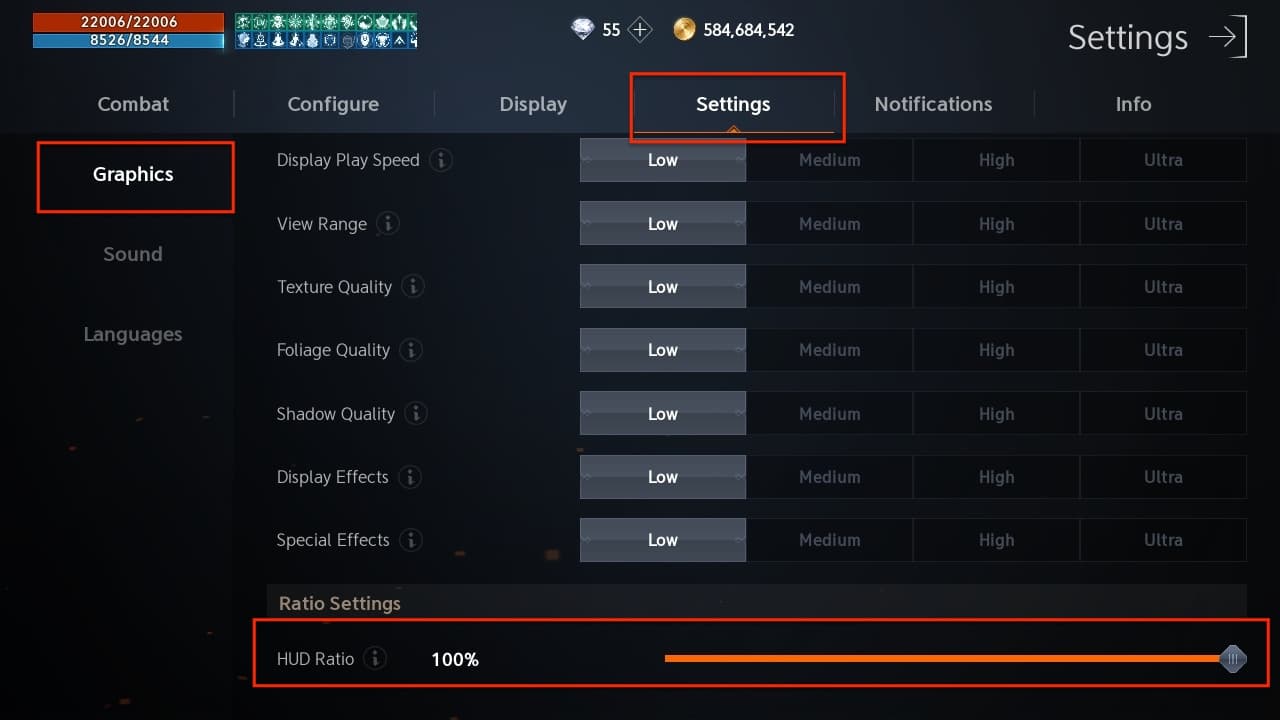
- Game resolution: 640×360 to 1920×1080, HUD 100% or 75%. Tip: set the resolution that suits your field of view — the tool auto-adjusts if it drifts, keeping detection stable.
App Setup
- Run with Administrator rights (Right-click → Run as Administrator), or go to Properties → Compatibility and enable Run as Administrator.
- Disable ScreenSaver. You may turn off the monitor display to save power if needed.
- On first launch, the tool loads the AI module — this takes a few seconds and is completely normal.
- Check the log file in the installation folder after startup to confirm whether the tool is using CPU or GPU.
In-Game Setup
- Settings → Config → UI Scale (HUD): set to 100% or 75% (75% supported in v3 only).
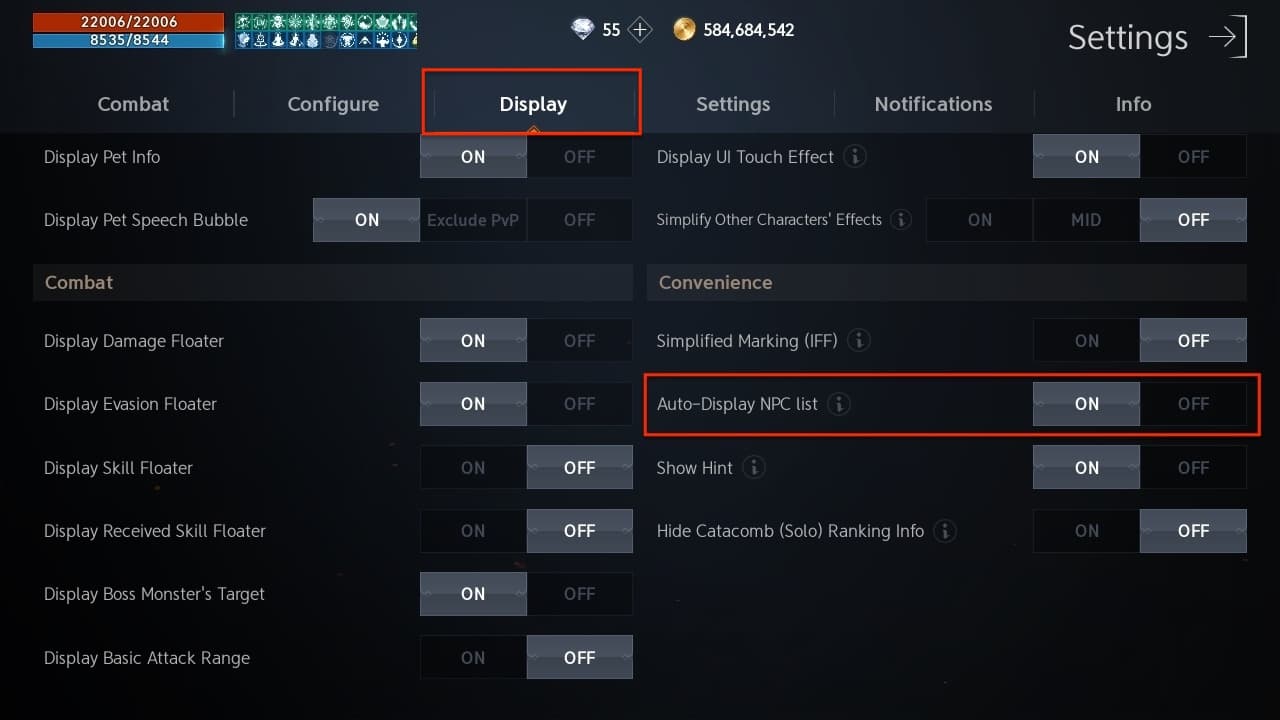
- Settings → Data Export → Convenience: enable “Auto-show NPC list” (prevents the bot from returning to town repeatedly).
- Disable auto power-saving mode.
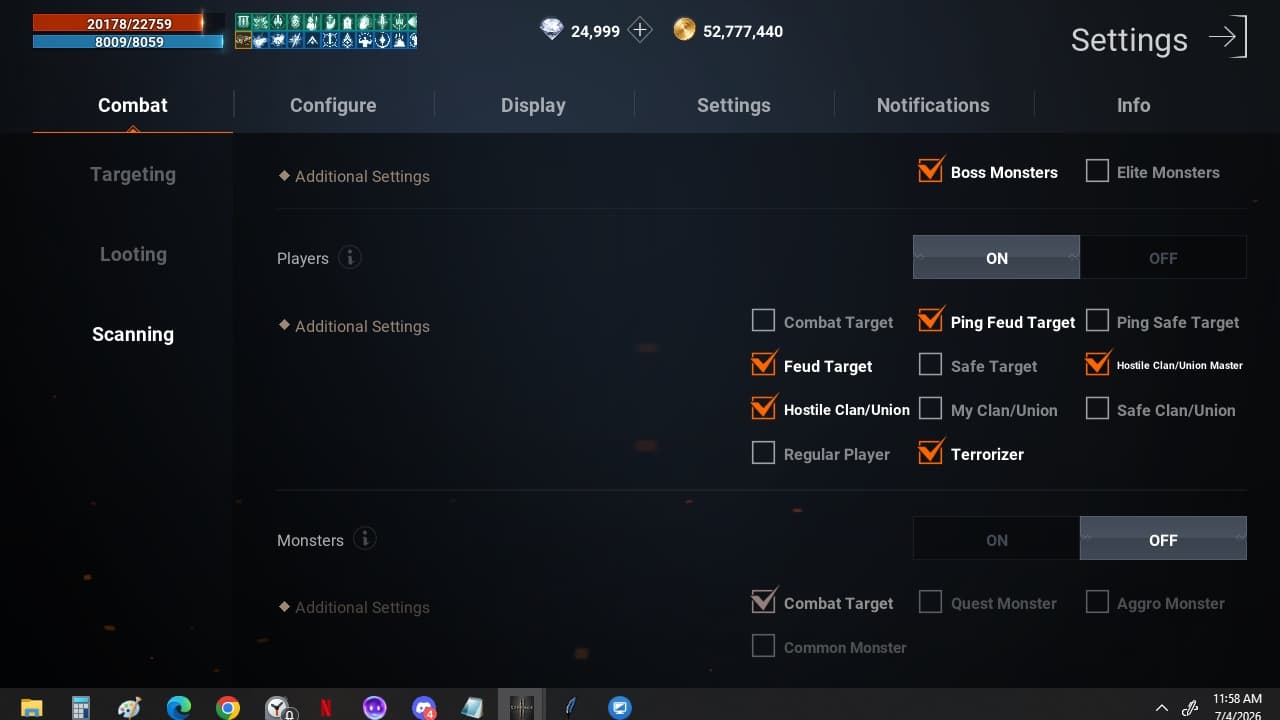
- Turn off monster scanning and guild/friend scanning on radar. Only enable enemy scanning so the AI alerts correctly.
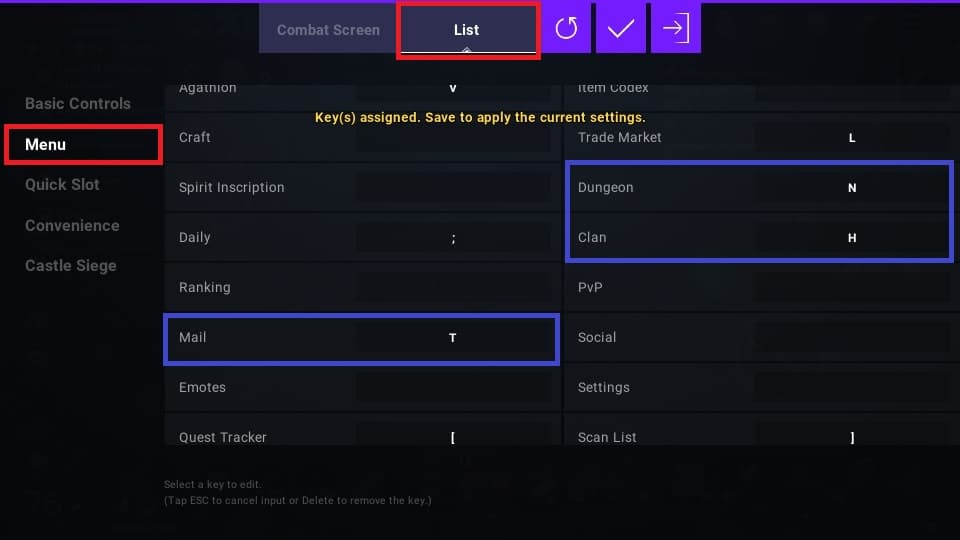
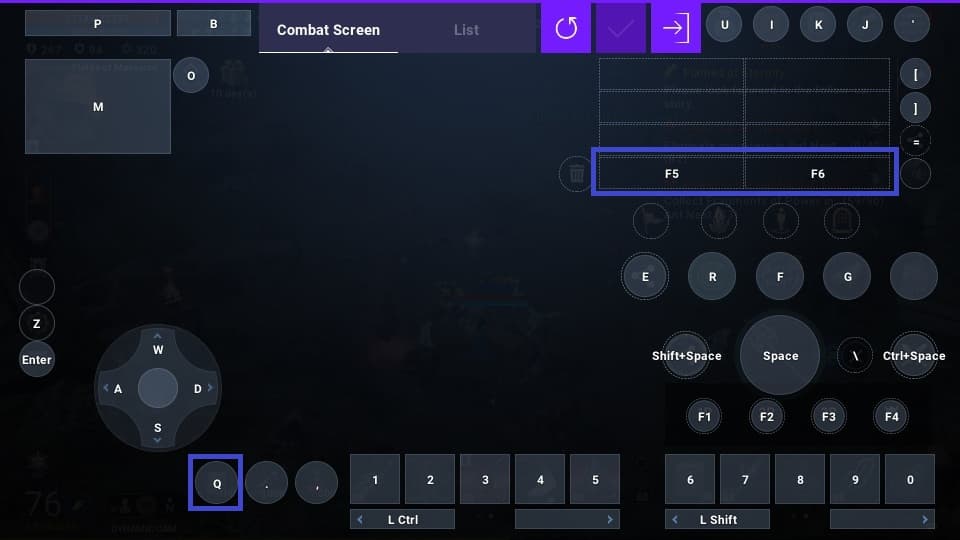
- Set attack radar priority order: 1: F5, 2: F6.
GPU Acceleration
The tool automatically detects and uses a GPU if available, in priority order:
- NVIDIA GPU — fastest, highest priority.
- AMD / Intel GPU — well-supported on Windows 10/11, no extra drivers needed.
- CPU — automatic fallback if no GPU is present or compatible.
What Does the AI Detect?
The v3 AI is trained to recognize the following objects on the game screen:
RadarKeThu / KeThu— Enemies on radar and main screenRadarWarning— Enemy warning in danger zonesAttacked— Character is currently under attackBossOn / BossOff— Boss is active or has despawnedZaricheOn / ZaricheOff— Zariche (Cursed Sword) is active or goneTown— Character is inside a townNPCList / NPC— NPC list panel and individual NPCsConfirmScreen— Teleport confirm popup (scroll / diamond)AutoOff / AutoOn— Game auto mode is off / onHPBar— HP bar position for reading HP valueScreenDead— Character has diedSavedSpotPanel— Saved spot panel (teleport to spot)OpeningNormalMap / OpeningDungeonMap— Normal / dungeon map is openVipTrainningArea— VIP training areaAI Text Reading – v3 Exclusive
Beyond object detection, v3 can also read text directly from the screen. Current practical use:
- Boss exclusion by name — reads boss names on the map and compares them against your exclusion list. Any boss on the list is skipped even if spotted on the radar.
Common Issues
- Tool starts slower than Basic — normal; it loads the AI module on startup. Only happens the first time each session.
- HP reading incorrect / tool reports unstable — check resolution, HUD scale, and make sure nothing is covering the game window.
- Town teleport clicks wrong position — fully Stop the tool, wait for it to idle, then Start again.
- AI misses or misidentifies objects — check the log file to see if GPU or CPU is being used. Try saving a screenshot to the
Trainingfolder and reporting it on Discord to help improve the AI.
Quick Q&A
Does v3 require a GPU?
No. v3 automatically detects and uses a GPU if available; without one it falls back to CPU and still runs fine — just slightly slower on the AI processing side, with no gameplay impact.
How is v3 different from the Basic version?
The Basic version recognizes game elements using fixed image templates — simple and lightweight, but prone to errors when the resolution or UI changes. v3 uses AI to identify objects by category, which is more accurate and stable across different resolutions and UI updates.
What is the AI text-reading feature used for?
It reads boss names directly from the map, enabling the Boss Exclusion List — bosses on your list are skipped even if they appear on the radar. This feature is exclusive to v3.
Do I need to download any extra files after installing?
No. All AI modules are bundled inside the v3 installer. If a required file is missing, the tool will notify you on startup.
Community & Support
For detailed guides, bug reports, and community discussions: Discord Channel,Facebook Fanpage
v3 is a major leap forward thanks to AI screen recognition — more stable, smarter, and continuously improving with data from the community. Enjoy the setup and happy farming! ⚔️🤖
— The Auto Key L2M Development Team